How to Make Teams in Excel (Step-by-Step, With Formulas)
To make teams in Excel, list your names in a column, add a random number next to each with `=RAND()`, sort by that column, and then split the shuffled list into as many teams as you want. It works, and this guide walks you through it step by step. But if you'd rather skip the formulas and re-sorting, a free random team picker does the whole thing in one click and never breaks when someone edits a cell.
Short on time? Open the free team picker, paste your names, choose your number of teams, and get fair, random groups instantly, no formulas, no sorting, no spreadsheet at all.
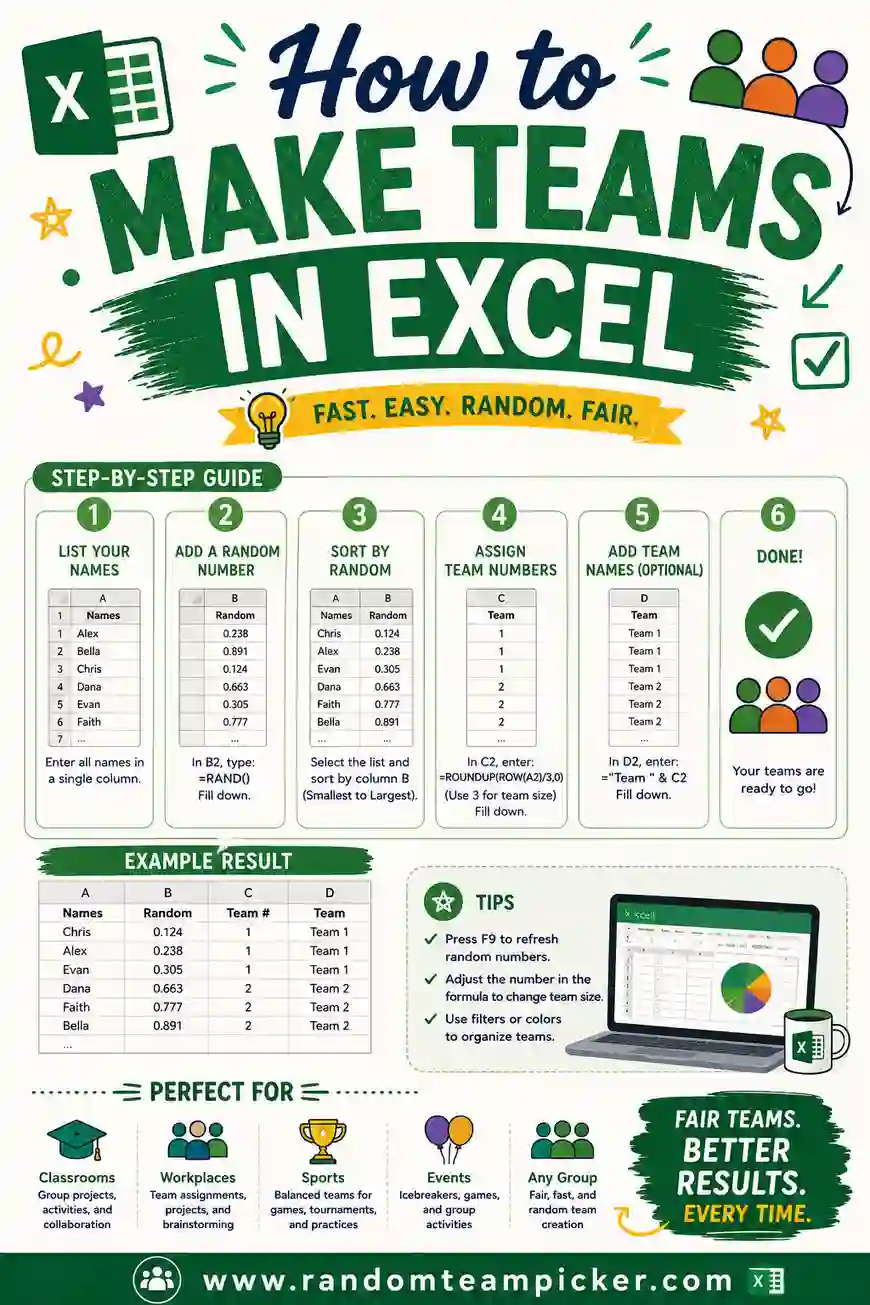
The Quick Version: Make Teams in Excel in 4 Steps
If you just want the recipe, here it is. Details and screenshots-in-words follow below.
- Put names in column A, one per row (say A2 through A13 for 12 people).
- In column B, add `=RAND()` next to each name and copy it down.
- Sort by column B (smallest to largest). This shuffles your names randomly.
- Assign teams by dealing the sorted names out, either by eye or with a quick formula.
That's the core method. Now let's make each step foolproof.
Step 1: List Your Names
Open a blank sheet. In cell A1 type a header like "Name." Then list every person down column A, one name per cell. Keep it clean, no blank rows in the middle, no duplicate spellings.
If you have two people with the same name, add a last initial, "Sam K" and "Sam P," so you and the sorter can tell them apart later.
Step 2: Add a Random Number With RAND()
In cell B1, type a header like "Random." In B2, type:
```
=RAND()
```
Press Enter. Excel drops a random decimal between 0 and 1 into the cell. Now grab the little square at the bottom-right corner of B2 and drag it down to the last name, or double-click it to auto-fill. Every name now has its own random number.
A quirk to know: `RAND()` is "volatile," which means it recalculates every time the sheet changes. Your numbers will jump around whenever you type anything. That's fine for the sort, but it's why the next step includes a "freeze" trick.
Freeze the random numbers (optional but smart)
If you want your shuffle to stay put:
- Select column B (all your RAND values).
- Copy them (`Ctrl+C`).
- Right-click, choose Paste Special, and pick Values.
Now the numbers are fixed and won't jump when you sort. Skip this and the sort still works, the values just keep changing in the background.
Step 3: Sort to Shuffle
Select both columns (A and B) including your headers. Then:
- Go to the Data tab.
- Click Sort.
- Sort by your "Random" column, smallest to largest (or largest to smallest, doesn't matter).
Your names are now in random order. Because each name had a unique random number, the order is genuinely scrambled, and every name appears exactly once. No repeats, no left-out names.
Step 4: Assign the Teams
Now split the shuffled list. Two easy ways:
The eyeball method
Decide how many teams you want. For 12 people into 3 teams, that's 4 per team. Just read down the sorted list: the first 4 names are Team 1, the next 4 are Team 2, the last 4 are Team 3. Type the team name in column C next to each. Done.
The formula method
If you want Excel to label the teams automatically, put this in cell C2 (assuming names start in row 2) and copy it down:
```
="Team " & (MOD(ROW()-2, 3) + 1)
```
Change the `3` to however many teams you want. This deals names out in a rotation, Team 1, Team 2, Team 3, Team 1, and so on, which keeps team sizes as even as possible even when the numbers don't divide cleanly.
To group all of one team together, sort again by column C, or use a filter to view one team at a time.
Handling Uneven Numbers
What if your headcount doesn't divide evenly? Say 14 people into 4 teams. That's two teams of 4 and two teams of 3.
The rotation formula above handles this automatically, it just gives the first couple of teams one extra person. If you're doing it by eye, deal one name to each team in turn and the leftovers naturally land on the first teams. Either way, no team ends up wildly bigger than the others. For more on this, see how to randomly split into teams.
Excel vs. a Free Team Picker
Excel gets the job done, but it has friction. Here's an honest comparison so you can pick the right tool for you.
| Factor | Excel (RAND + sort) | Free team picker |
|---|---|---|
| Setup time | A few minutes of formulas and sorting | Paste and click |
| Re-shuffle | Re-sort or recalc, then re-check | One button |
| Uneven teams | Handled, but you set it up | Automatic |
| Breaks easily | Yes, an edit re-randomizes RAND | No |
| Needs software | Yes, Excel installed | No, works in any browser |
| Best for | You already live in a spreadsheet | Fast, repeatable, no fuss |
If you keep your roster in a spreadsheet anyway, Excel is convenient. If you just want fair teams fast, the team picker is quicker and won't scramble itself when you tab away. Our full team generator vs. manual comparison digs deeper.
Common Excel Team-Making Problems (and Fixes)
A few snags trip people up. Here's how to solve them.
- My numbers keep changing. That's `RAND()` being volatile. Freeze them with Paste Special > Values (see Step 2) before you sort.
- The sort didn't shuffle. Make sure you sorted by the random column, not the name column, and that you included all rows.
- Two people got the same "team." That's expected, teams have multiple members. If you meant no repeats of names, remember each name only appears once as long as your source list has no duplicates.
- My teams are lopsided. Use the rotation formula (`MOD`) instead of splitting by fixed chunks, and it evens out the extras.
- I need a different result. Recalculate (press F9) or re-add RAND, then re-sort. A picker just needs one click to re-shuffle.
When to Skip the Spreadsheet Entirely
Excel shines when your data already lives there and you need it alongside other columns. But reach for a free group randomizer instead when:
- You're on a phone or a shared computer without Excel.
- You need to re-shuffle several times in front of a group.
- Non-spreadsheet folks need to run it themselves later.
- You just want fair teams and nothing else, fast.
There's no shame in picking the simpler tool. The goal is fair teams, not spreadsheet points.
Does This Work in Google Sheets Too?
Yes, almost identically. Google Sheets uses the same `=RAND()` function, the same sort menu (Data > Sort range), and the same `MOD` formula for labeling teams. A couple of small differences to know:
- Sorting. In Sheets, select your range, then go to Data > Sort range and choose the random column. Same result as Excel's Sort dialog.
- Freezing values. To stop the random numbers from re-scrambling, copy the column, then use Edit > Paste special > Paste values only. That locks the shuffle in place.
- Sharing. Sheets lives in the browser, so it's easier to share a live team list with a co-teacher or a co-captain than an Excel file you'd have to email around.
If you already work in Google Sheets, there's no reason to switch to Excel just for this. The method carries over one-to-one.
A Faster Real-World Routine
Here's how this actually plays out when you need teams in a hurry, and why many people end up reaching for the picker instead.
Imagine it's five minutes before a game night and you've got 16 names to split into 4 teams. With Excel, you'd open the file, type or paste the names, add the RAND column, drag it down, freeze the values, sort, then apply the MOD formula and sort again. It works, but that's a lot of clicks under time pressure, and one stray edit re-randomizes everything.
With the team picker, you paste the 16 names, set "4 teams," and click once. Done, before Excel finished loading. That speed gap is why the spreadsheet approach shines for planned, data-heavy work, while a dedicated picker wins for quick, live, in-the-moment splits. Keep both in your back pocket and use whichever fits the moment. For the fuller trade-off, see our team generator vs. manual comparison.
Frequently Asked Questions
How do I randomly split names into teams in Excel?
List names in column A, add `=RAND()` in column B and copy it down, then sort both columns by the random column. Your names shuffle into a random order. Split the sorted list into equal chunks, or use `="Team " & (MOD(ROW()-2, n) + 1)` to label teams automatically.
Why do my RAND numbers keep changing in Excel?
`RAND()` is volatile, so it recalculates every time the sheet changes. To lock the values, copy column B, then use Paste Special and choose Values. The numbers freeze and won't jump when you sort or edit other cells.
How do I make even teams when the number doesn't divide evenly?
Use the rotation formula `="Team " & (MOD(ROW()-2, n) + 1)`, replacing `n` with your team count. It deals names out one team at a time, so extras land on the first teams and no group ends up much bigger than the rest.
Is there an easier way than Excel to make teams?
Yes. A free team picker lets you paste names and split them into fair, random teams with one click, no formulas, no sorting, and no risk of the sheet re-randomizing when you edit it. It works in any browser with no sign-up.
Can I make teams in Excel on my phone?
You can with the Excel mobile app, but formulas and sorting are fiddly on a small screen. For quick team-making on a phone, a browser-based team picker is far easier, just paste and tap.
How do I keep the same person off the same team as last time?
Excel's RAND doesn't remember past results, so you'd track that manually in another column. If avoiding repeat pairings matters, a dedicated tool or a quick re-shuffle-and-check is simpler than building the logic in a spreadsheet.
Ready to Skip the Formulas?
Excel's RAND-and-sort trick works, and now you know it cold. But if you'd rather not babysit a spreadsheet, open the free team picker, paste your names, and get fair, random, evenly-sized teams in one click. It's free, there's no sign-up, and re-shuffling takes a single tap. Try it and keep the spreadsheet for the stuff spreadsheets are actually good at.