Virtual Holiday Party Breakout Rooms: How to Split 30 Remote Coworkers
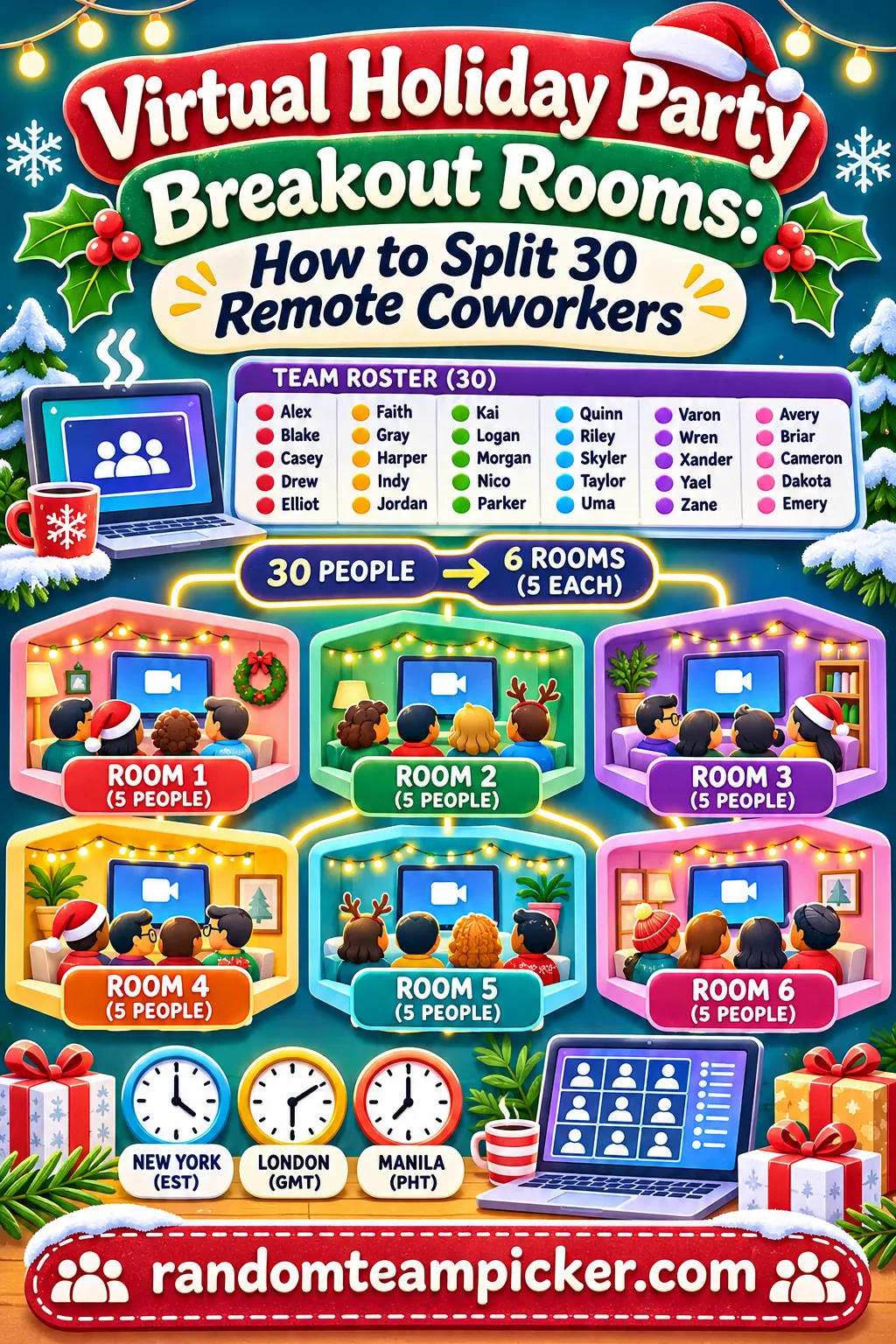
For breakout rooms at a virtual holiday party, split your 30 remote coworkers into 6 rooms of 5, mix departments and time zones on purpose, and reshuffle between every round so people meet someone new each time. Thirty faces in one video grid turns into five people talking and twenty-five on mute. Small rooms of 4 to 6 give everyone a real turn.
The fastest fair way to build those rooms is the free random team generator. Paste your roster, set 6 teams, turn on Avoid repeat pairings, and generate once per round. This guide covers room sizes, exact settings, how to mix departments and time zones, a full 60-minute run of show, games for each round, and scripts you can copy into your invite and your host notes.
Why a 30-Person Holiday Call Needs Breakout Rooms
A video call works a lot like a dinner table. Around 6 people, everyone talks. Around 10, a couple of people carry the conversation. Past about 15, the call turns into an audience watching a few speakers, and quieter coworkers stop turning their cameras on.
Holiday parties make this worse, not better. The goal of the party is connection, but a big call rewards the loudest people and the ones who already know each other. New hires, people from small teams, and anyone in a far-off time zone end up watching instead of joining.
Breakout rooms fix the math. In a room of 5, each person has roughly a fifth of the talking time. In the main room of 30, they have a thirtieth, and most of that time goes to the host anyway.
The trick is to keep the main room for short, shared moments (welcome, scores, the big finish) and send people to small rooms for everything else.
How Many People Per Breakout Room Works Best
Most remote teams do well with rooms of 4 to 6. Each size has a feel, and the right one depends on what you'll do in the room.
| People per room | How it feels | Best for | Watch out for |
|---|---|---|---|
| 3 | Intimate, easy to talk | Long chats, mentoring pairs plus one | One no-show leaves just two people |
| 4 | Lively, everyone talks a lot | Show-and-tell, story rounds, quick challenges | Can feel thin if someone's camera is off |
| 5 | The sweet spot for most parties | Trivia teams, mixed games, general chat | None big; a good default |
| 6 | Full and fun | Trivia with lots of categories, team challenges | Quieter people start to fade |
| 7 to 8 | Starts to feel like a meeting | Very short rounds only | Two people dominate, others mute |
A few rules of thumb:
- Plan for no-shows. On a holiday call, a few people always drop off, join late or get pulled into something. A room of 5 that loses one person still works. A room of 3 that loses one doesn't.
- Match the size to the activity. Trivia teams of 4 to 6 give enough brains to cover different topics. A "tell us about your favorite holiday food" round is better at 4, so each person gets more time.
- Keep rooms close in size. A room of 7 next to a room of 3 feels unfair in a scored game. The team generator never makes rooms more than one person apart, so you get 5 and 4, not 7 and 3.
If you want a deeper look at group size in general, our guide on how many people per team is best walks through the same tradeoff for other activities.
How many rooms to make for your headcount
Divide your headcount by the room size you want and round up. That's your room count. The tool handles the leftovers by spreading them one at a time, so some rooms just get one extra person.
Here are the splits for common remote party sizes. "Rooms" is what you'd type into the tool under Number of teams.
| Headcount | Rooms | Room sizes | Notes |
|---|---|---|---|
| 12 | 3 | 4, 4, 4 | Or skip breakouts and play together |
| 16 | 4 | 4, 4, 4, 4 | Clean split |
| 20 | 4 | 5, 5, 5, 5 | Clean split |
| 22 | 5 | 5, 5, 4, 4, 4 | Use People per team set to 5 |
| 25 | 5 | 5, 5, 5, 5, 5 | Clean split |
| 30 | 6 | 5, 5, 5, 5, 5, 5 | The classic setup for this guide |
| 30 | 5 | 6, 6, 6, 6, 6 | Fewer rooms, longer chats |
| 36 | 6 or 7 | 6 x 6, or 6, 5, 5, 5, 5, 5, 5 | Seven rooms if you have enough hosts |
| 45 | 9 | 5 x 9 | Plan one host per room |
| 50 | 9 | 6, 6, 6, 6, 6, 5, 5, 5, 5 | People per team set to 6 |
You can tell the tool what you want in two ways, and both get you to the same place:
- Number of teams when you know how many rooms you want. Thirty people in 6 rooms gives 5 each.
- People per team when room size matters more than room count. Set it to 5 for 22 people and the tool works out that it needs 5 rooms. It rounds up so nobody is dropped, then balances the leftovers. You'll get 5, 5, 4, 4 and 4, not four rooms of 5 and a lonely room of 2.
If your headcount doesn't divide evenly, that's normal. The tool hands the extras out one at a time, so the biggest and smallest rooms never differ by more than one person.
How to Do It With the Free Tool (Exact Settings)
Here's the full walkthrough on the free random team generator for a 30-person party with three rounds. Plan about ten minutes the first time, and do it the day before the party, not with everyone watching you.
Step 1: Get a clean roster
Start from the list of people who accepted the invite, not your whole company directory. If you tracked responses in a spreadsheet, copy the name column and paste it into the Enter names box. Each cell lands on its own line, so there's nothing to retype.
Before you paste, clean the list up:
- Use display names. Write each person the way their name shows on the video call. If someone shows up as "J. Okafor" on screen, that's what you want in the list, so you can find them fast when you assign rooms.
- Make duplicates unique. Two people named Sam? Write "Sam P." and "Sam W." The tool treats each line as one person, and clear names save you from assigning the wrong Sam.
The counter under the box tells you how many names it found. Check it against your RSVP count before you go on.
Step 2: Save the list
Type a name like "Holiday call roster" in the Saved lists box at the top and click Save. The list is stored in your own browser, on that device. If you need to come back tomorrow and redo a round, you can load it again without pasting.
Step 3: Choose your split
Under Split mode, pick one:
- Number of teams, then type 6 (or use the minus and plus buttons). For 30 people, that's 6 rooms of 5.
- People per team, then type 5. You'll get the same 6 rooms of 5 for 30 people, and the setting keeps working if your headcount changes to 27 or 33.
Step 4: Name the rooms
Open the Team names menu. For a holiday call, Color names ties rooms to holiday colors, and Team 1, Team 2… matches the numbered rooms most video apps create, so your co-host never has to translate. After you generate, you can click any team name on its card and type over it, so "Room 1" can become "Room 1: Peppermint" if you like a theme. Our holiday team name generator has a long list of festive names if you want each room to have its own.
Step 5: Turn on Avoid repeat pairings
This is the setting that makes multi-round parties work. Check Avoid repeat pairings (keep people apart across shuffles). From now on, each time you click Generate, the tool remembers who shared a team and tries to keep those people apart the next time. A small line appears under the checkbox telling you how many past pairings it's remembering, with a Reset history button next to it.
Two things to know before you use it:
- Every generate counts. The tool remembers pairings from each set of teams it makes while the box is checked, including re-shuffles. If you re-shuffle round 1 three times because you didn't like the mix, all three versions go into memory, and round 2 has fewer fresh options. Click Reset history before you start, and try to generate each round once.
- Clear wipes the memory. The Clear button empties the names box and also forgets the pairing history. Don't press it between rounds.
Step 6: Add your rules
Open the Constraints section. There are two boxes, one rule per line, with names separated by commas.
- Keep apart. Everyone on one line goes into a different room, as long as you have enough rooms. Use it to spread out your room hosts, managers, or a small department.
- Keep together. Use it rarely. It's handy for a new hire and their onboarding buddy in round 1, or two people sharing one laptop in the same house.
Here's an example for 30 people in 6 rooms:
Keep apart:
Dana, Luis, Priya, Tom, Kezia, Ray
Mark, Tasha, Ben
The first line puts the six room hosts in six different rooms. The second line keeps three managers apart, so no room gets more than one. If you ask for more separation than you have rooms (seven names on one line with only six rooms), the tool shows a warning and gives you the closest split it can. That's your cue to shorten the line or add a room.
Keep-apart rules stay in place every time you generate, so your hosts stay spread out in rounds 2 and 3 too.
Step 7: Generate round 1 and save it
Click Generate Teams. You'll get one colored card per room with a head count, and a "+1" tag on any room that got an extra person. Turn on Pick a captain before you generate if you want a star next to the first name in each room. That person can share their screen for trivia or keep the room's answers.
If someone needs to move, drag their name to another card. On a phone, tap the name and then tap the card you want.
When round 1 looks right, save it before you make round 2:
- Copy puts the room list on your clipboard as plain text.
- Copy link gives you a link that opens the same rooms later.
- CSV or TXT downloads a file.
- Print makes a clean sheet to keep next to your keyboard during the call.
- Share sends the list from your phone.
Paste the copied text into a document called "Round 1." Then click Generate Teams again for round 2 and save that too, then round 3. With Avoid repeat pairings on, each new round steers people toward coworkers they haven't been grouped with yet.
Moving the Groups Into Your Video App's Breakout Rooms
The team generator makes the groups. Your video meeting app is where people actually move. Every app handles breakout rooms a little differently, so check its help page for the exact buttons, but the general options are the same.
| Assignment method | How it works | Good for | Downside |
|---|---|---|---|
| Manual assignment during the call | The host drags or picks each person into a room live | Any group size, last-minute changes | Takes a few minutes for 30 people |
| Pre-assigned rooms before the call | Some apps let the host set rooms ahead of time by email address or a file | Big parties, hosts who want a smooth start | Breaks if people join from a different account |
| Let people pick their room | Attendees choose a room from a list | Casual calls, people who know where they belong | Friends cluster, which defeats the purpose |
| Automatic random split in the app | The app scatters people by itself | Super quick | No control over mixing, hosts or repeats |
For a party where mixing matters, use the team generator's groups with manual or pre-assigned rooms. Here's a workflow that keeps it fast.
Make a co-host your "room mover"
Ask one person to be co-host and own room assignment. While you're welcoming everyone in the main room, they're quietly putting people into Room 1 through Room 6 from your saved round 1 list. You never have to say "hang on, I'm assigning rooms" while 30 people stare at you.
Post the list in chat
Paste each round's list into the call's chat right before you open the rooms. People like to see who they're about to meet, and anyone who lands in the wrong room can spot it and say so. It also helps if the app drops someone; they can tell the co-host which room they belong in.
Have a plan for late arrivals
Someone always joins ten minutes late. Don't regenerate the whole round. Look at your saved list, find a room without the "+1" tag (that's a room with space), and put the latecomer there. Write their name into your round 2 and round 3 lists in a room that's also short a person. They'll miss out on the repeat-pairing memory, and that's fine.
Mixing Departments and Time Zones on Purpose
A plain random shuffle mixes people pretty well on its own. But remote teams have two patterns that random luck doesn't always break: people who work together every day, and people who live in the same region. You want the holiday party to cross both lines.
Spreading small departments
If a department has no more people than you have rooms, put all of them on one Keep apart line. Four people from Finance and 6 rooms? Ana, Ben, Cara, Dev on one line puts each one in a different room, every round.
Bigger departments can't all go on one line, since you can't put 10 people into 6 different rooms. For those, either split the department into two lines (each line gets spread out on its own) or just scan the cards and click Re-shuffle if one room is lopsided. Remember that with Avoid repeat pairings on, every re-shuffle also goes into memory, so do your trial shuffles before you check that box, or click Reset history when you're done experimenting.
Spreading time zones with the skill trick
Say 10 of your 30 people work on the West Coast and 20 are in the East. A random shuffle might put three West Coast people in one room and none in another. You can spread them with Balance by skill:
- In the names box, add
, 5after each West Coast person's name, likeJordan, 5. - Leave everyone else without a number. The tool counts them as 3.
- Check Balance by skill.
- Generate.
The tool evens out the point totals across rooms, and the easiest way to do that is to spread the 5s around. With 10 West Coast people and 6 rooms, most rooms end up with one or two. The cards show point totals, which you can ignore or delete before you share the list.
The same trick works for any one group you want spread out: a big department, your newest hires, or everyone joining from one office. It handles one group at a time, so pick the one that matters most.
Picking a time that works across zones
Breakout rooms can't fix a party scheduled at 7 a.m. for half the team. Before you send the invite, list every time zone your attendees are in and look for a slot inside normal working hours for as many people as possible. For a team spread across the US, early afternoon Eastern is late morning Pacific, which tends to work. If your team spans continents, consider two shorter parties at different times and split the roster between them, so nobody has to join in the middle of the night.
If some people need to leave early because their day ends sooner, put them on a Keep apart line too. That way their early exit takes one person out of several rooms instead of emptying one room.
For more ways to mix people at work, our page on the team generator for office team building covers department mixing for other kinds of events.
A 60-Minute Run of Show for a 30-Person Call
Here's a sample schedule for 30 people in 6 rooms of 5, with three breakout rounds. Shift the times to fit your slot.
| Time | Where | What happens | Who runs it |
|---|---|---|---|
| 0:00 | Main room | Music on, people join, cameras on, quick hellos | Host |
| 0:05 | Main room | Welcome, how the rooms work, round 1 rules | Host |
| 0:10 | Breakout rooms | Round 1: Holiday show-and-tell (12 minutes) | Room hosts |
| 0:22 | Main room | Everyone returns; two or three rooms share a highlight | Host |
| 0:25 | Breakout rooms | Round 2: Holiday trivia, new rooms (12 minutes) | Room captains |
| 0:37 | Main room | Trivia answers and scoreboard reveal | Host |
| 0:40 | Breakout rooms | Round 3: Team challenge, new rooms (12 minutes) | Room hosts |
| 0:52 | Main room | Challenge results, final scoreboard, thank-yous | Host |
| 0:58 | Main room | Group photo with cameras on, goodbyes | Host |
| 1:00 | Party ends |
That's 36 minutes in small rooms and about 24 minutes together. If you only have 45 minutes, drop round 3 and shorten the welcome. If you have 90 minutes, add a fourth round and give each one 15 minutes.
Before the party
| When | Task |
|---|---|
| 2 weeks before | Pick a date and time that works across your time zones; send the invite |
| 1 week before | Close RSVPs; choose room hosts (one per room) |
| 3 days before | Generate all three rounds with Avoid repeat pairings on; save each one |
| 2 days before | Send room hosts the game rules and their room lists |
| 1 day before | Do a five-minute test call with your co-host to practice opening rooms |
| Day of, 15 minutes early | Open the call, set up rooms, load round 1 assignments |
Games and Prompts for Each Breakout Round
Each round needs one clear thing to do. "Just chat" works for some groups, but most people relax faster with a small task. Here are activities that work in rooms of 4 to 6, all doable on camera with nothing to buy.
Round 1: Holiday show-and-tell
Each person has 90 seconds to show one thing from their home and tell its story. Ideas:
- A favorite ornament or decoration
- A mug, sweater or hat that only comes out in December
- A family recipe card or the dish they always make
- The view from their window right now
- Something a kid or pet made, or destroyed
Show-and-tell is a strong opener because there's no wrong answer and everyone has something. It also tells people a lot about each other in a few minutes.
Round 2: Holiday trivia by team
Send one shared set of 10 questions to every room's captain in chat, right before the rooms open. Each room works together, and the captain sends the room's answers to the host in a private chat message before time runs out. Score one point per correct answer and show the scores when everyone returns.
Mix easy and hard questions, and stick to general knowledge so nobody needs to look anything up. Topics that work: winter weather facts, holiday foods around the world, traditions in different countries, number questions ("How many sides does a typical snowflake have?" Answer: six), and questions about your own team's year. For more team trivia formats, see our page on the team generator for trivia nights.
Round 3: Team challenges
Pick one or two quick challenges each room can do together:
- Scavenger sprint. The room host calls out an item ("something red," "something older than you," "something that smells like the holidays") and each person has 60 seconds to find it at home. The room scores a point for every person who shows the item on camera in time. The main host can't watch every room, so hosts report their room's score on the honor system.
- Holiday story chain. One person starts a short winter story with one sentence. Each person adds one sentence in turn. The room picks its favorite line to read in the main room.
- Six-word holiday memory. Everyone writes a six-word story about a holiday memory and reads it out. The room votes on one to share.
Keep rules simple enough to explain in 30 seconds. If a game needs a long explanation, the room will spend half its time figuring it out.
Running a scoreboard across rounds
A shared leaderboard turns the whole party into one friendly competition. Since rooms change every round, track people, not rooms. Each person earns their room's points for that round. At the end, add up each person's points across all three rounds.
Here's a simple way to do it:
- Keep a spreadsheet with all 30 names down the side and Round 1, Round 2, Round 3 across the top. The CSV download from each round gives you the room lists to work from.
- After each round, enter the room's score next to every person who was in that room.
- Add a Total column and sort by it before the final reveal.
Because the rooms are random and reshuffled every round, nobody gets stuck on a weak team all night. It's about the fairest leaderboard you can run on a call. Show the top 5 at the end and give the winner something small but fun, like first pick of the January meeting slots or a shout-out in the next team update.
Scripts You Can Copy for the Invite and the Call
Clear words up front save a lot of confusion on the day. Here are short scripts you can paste and edit.
Invite message
"You're invited to our virtual holiday party on [date] at [time, with two or three time zones listed]. It's 60 minutes, cameras on if you can, and no prep needed. We'll spend most of the time in small breakout rooms of about 5 people, with new rooms each round, so you'll get to chat with coworkers you don't usually work with. Bring one thing from your home that says 'holidays' to you for show-and-tell. Please RSVP by [date] so we can set up the rooms."
Message to room hosts
"Thanks for hosting a room! Your job is easy: start the conversation, make sure everyone gets a turn, and keep an eye on the time. Each round is 12 minutes. In round 1, go around the room for show-and-tell, 90 seconds each. In round 2, your room's captain (the name with a star) sends trivia answers to me in a private chat. In round 3, run the scavenger sprint and report your room's score. Your room lists for all three rounds are below."
Opening line in the main room
"Welcome, everyone! Here's how today works. We have three rounds in small rooms of about five people. Every round you'll get brand-new roommates, picked at random so nobody gets stuck with the same people. You'll get a one-minute warning before each room closes. Between rounds we'll come back here for a few minutes for scores. First up is show-and-tell. Grab your holiday item. Opening rooms now!"
Troubleshooting Common Breakout Room Problems
Even a well-planned call has hiccups. Here's what tends to go wrong and how to fix it quickly.
| Problem | Likely cause | Fix |
|---|---|---|
| A room has two people from the same small team | Plain random luck | Put that team on one Keep apart line and regenerate before the call |
| Round 2 has a lot of repeats from round 1 | Several re-shuffles in round 1 filled the pairing memory | Click Reset history, then generate rounds 1, 2 and 3 again in a row |
| Same two people together in rounds 1 and 3 | Too few rooms for many no-repeat rounds | Drag one name to another room; with small groups some repeats are unavoidable |
| Name counter shows more people than RSVPs | Duplicate lines or stray text | Scroll the names box and delete repeats or blank-looking lines |
| Keep-apart warning appears | More names on one line than you have rooms | Shorten the line, split it in two, or add a room |
| Pairing history disappeared | Someone pressed Clear, or you opened the tool on another device | Use your saved Copy link, CSV or TXT for each round; the lists don't need the tool once saved |
| Latecomer doesn't know where to go | They missed the chat post | Co-host moves them into a room without the +1 tag |
How many no-repeat rounds can you get?
There's a natural limit to fresh rooms. In a room of 5, each person meets 4 new people per round. With 30 people, everyone has 29 possible coworkers to meet, so three rounds covers 12 of them if nobody repeats. Three rounds is comfortable for 30 people, and the Avoid repeat pairings setting usually finds three rounds with few or no repeats.
Smaller parties hit the limit faster. With 12 people in 3 rooms of 4, each person meets 3 new people per round, and there are only 11 others in total. By round 3 or 4, some repeats are basically guaranteed. That's fine. Just don't promise "you'll never see the same face twice" unless your party is big.
| Party size | Room size | Rounds with few or no repeats | Comfortable max rounds |
|---|---|---|---|
| 12 | 4 | 2 | 3 |
| 20 | 5 | 3 | 4 |
| 30 | 5 | 3 to 4 | 5 |
| 45 | 5 | 4 or more | 6 |
These are rough guides, not guarantees. Check each round's cards and drag a name or two if you spot a repeat that bothers you.
If you want to understand how no-repeat rotations work in general, our guide on how to randomize without repeats explains the idea in more depth.
Your next step
Grab your RSVP list and open the free team generator. Paste the names, set Number of teams to 6, check Avoid repeat pairings, add a Keep apart line for your room hosts, and click Generate once for each round. Save every round with Copy, CSV or Copy link, send the lists to your hosts, and you're ready. Fifteen minutes of setup gives you a holiday call where everyone talks, everyone meets someone new, and nobody spends an hour watching a grid of muted faces.
Frequently Asked Questions
How many people should be in each breakout room for a holiday party?
Rooms of 4 to 6 work best for most remote holiday parties, and 5 is a good default. That's small enough that everyone talks but big enough to survive one person dropping off. For trivia, lean toward 5 or 6; for story or show-and-tell rounds, 4 gives each person more time.
How do I split 30 remote coworkers into breakout rooms?
Paste all 30 names into the random team generator, choose Number of teams, and type 6. You'll get 6 rooms of 5. If you'd rather have fewer, bigger rooms, type 5 for rooms of 6.
How do I make sure people get new roommates each round?
Check Avoid repeat pairings before you generate, then click Generate Teams once per round. The tool remembers who has shared a team and steers people toward new faces the next time. Save each round's list as you go, and avoid pressing Clear, which erases that memory.
Can I keep managers or room hosts in separate rooms?
Yes. Open Constraints and type their names on one line in the Keep apart box, separated by commas. Each name on the line goes into a different room, and the rule applies every round. If you have more names on the line than rooms, the tool warns you and shows the closest split.
How do I mix people from different time zones?
Type a comma and the number 5 after each name from the region you want to spread out, leave everyone else blank, and check Balance by skill. The tool evens out each room's total, which spreads those people across rooms. You can ignore the point totals on the cards.
Should I let people choose their own breakout rooms?
For a holiday party, usually not. People pick rooms with their usual teammates, and the shy or new coworkers end up alone. Random rooms from a shared list are fairer, and posting the list in chat lets everyone see who they'll meet.
How long should each breakout round last?
Ten to fifteen minutes is a good range, and 12 minutes fits nicely into a 60-minute party with three rounds. Give a one-minute warning before rooms close so people can finish their thought. Keep main-room breaks to about three minutes.
What if someone joins the call late?
Don't regenerate the round. Find a room on your saved list without the +1 tag, which means it has space, and have your co-host move the latecomer there. Add them to a short room in the later rounds by hand.